How to use the Base64 converter
The steps for converting in both directions, and what to check when it fails.
How the page is laid out
The converter page has three parts stacked vertically: the Base64 box at the top, the Convert button in the middle, and the plain text box at the bottom. One button covers both directions, which means neither box is permanently the input — whichever box you edited last becomes the input.
The icon in the bottom-right corner of each box copies that box to the clipboard. The Clear button at the bottom empties both boxes.
Turning text into Base64 (encoding)
- Type or paste your text into the plain text box at the bottom.
- Press Convert in the middle.
- The result appears in the Base64 box at the top. Copy it with the icon in its corner.
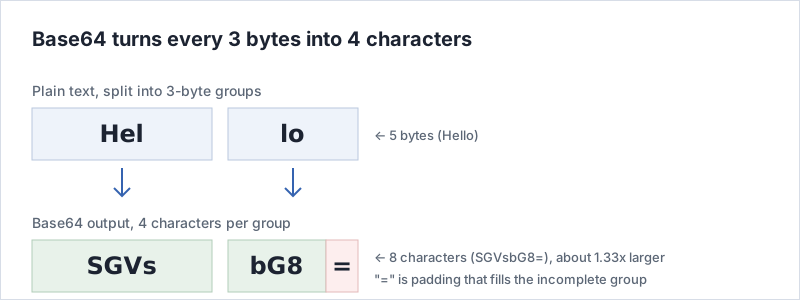
Entering Hello and converting gives SGVsbG8=.
Non-Latin text works the same way: the Japanese greeting こんにちは
becomes 44GT44KT44Gr44Gh44Gv.
Turning Base64 back into text (decoding)
- Paste the string into the Base64 box at the top.
- Press Convert.
- The original text appears in the plain text box below.
Pasting SGVsbG8= gives back Hello.
Line breaks in the middle are fine — MIME-encoded data is often wrapped every 76 characters —
because whitespace is stripped before decoding.
Why the direction is automatic
There is no encode/decode toggle. The box you last typed into is the input, and the other one receives the output. Just after typing plain text, Convert encodes; just after pasting into the Base64 box, it decodes.
The consequence is that if both boxes still hold text, Convert may run in the direction you did not intend. When that happens, press Clear to empty both boxes and start again.
Input limit
Each box holds up to 10,000 characters. Everything is processed inside the browser, so pasting something as large as a whole image file could freeze the tab — hence the limit. Split longer strings into parts.
What to check when decoding fails
Working through these in order usually finds the cause.
-
Is a prefix attached?
Copying a data URI brings along something like
data:image/png;base64,. Only the part after the comma is Base64. -
Are any characters missing?
Base64 works in groups of four, and a length that leaves exactly one character over
cannot be valid. (A missing trailing
=on its own is usually still decodable.) -
Does it contain
-or_? That is URL-safe Base64, which substitutes those for+and/. The segments of a JWT use this form. Convert it back to standard Base64 first. - Was the original actually text? Decoding fails if the restored bytes are not valid UTF-8, which is what happens when the source was binary — an image or a ZIP archive, for example.
What happens to your input
The conversion itself runs in your browser, but this Base64 tool does log what you enter — the conversion direction and the plain-text side of the input. Please do not paste passwords, private keys or personal data. The scope and purpose are in the privacy policy, and the policy for the site as a whole is on the about page.
Frequently asked questions
Where is the button to switch between encoding and decoding?
There is no switch. Of the two boxes, Base64 on top and plain text below, whichever you typed into last is treated as the input, and the result is written to the other one. Type into the plain-text box to encode, paste into the Base64 box to decode.
Why does decoding fail?
Either the string contains characters that Base64 does not use, its length leaves a single leftover character out of a group of four, or the bytes it restores are not valid UTF-8. Pasting a data URI prefix such as data:image/png;base64, along with the payload is another common cause.
Can it handle non-Latin text and emoji?
Yes. The plain-text side is treated as UTF-8 bytes, so Japanese, Cyrillic, emoji and anything else convert normally. Note that one Japanese character is usually three bytes in UTF-8, so the Base64 output is longer than the character count suggests.
Related reading
What Base64 actually is and where you run into it is covered in the Base64 FAQ and guide. The other tools on this site are listed on the tool list.